
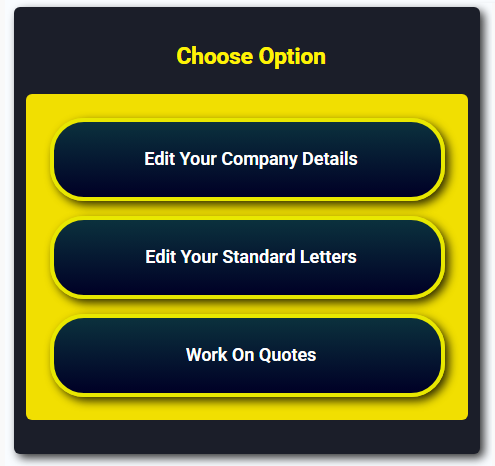
The main menu is the place you set up your data then choose to work on quotes. It's as simple as that. It is the starting point after joining and logging into the system.
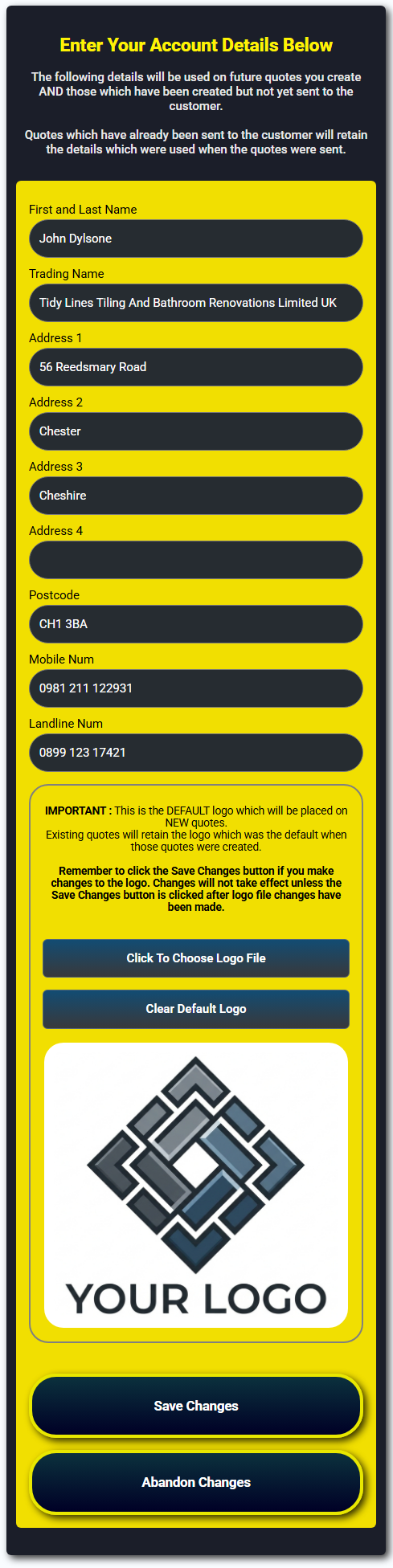
This is where you set up the details of YOUR organisation. This can be a sole trader, ltd company or any other type.
The details entered to this screen are shown on the quotes you send to your customers, and the logo uploaded to the system is also displayed on the quote.
If no logo is uploaded because you may not have one, then that is not a problem, our software handles the quote layout for you automatically so that it doesn't look
like there is something missing.
You can ask us to create a logo for you for free once you are a member. This can then be used on your business cards and other advertising methods.
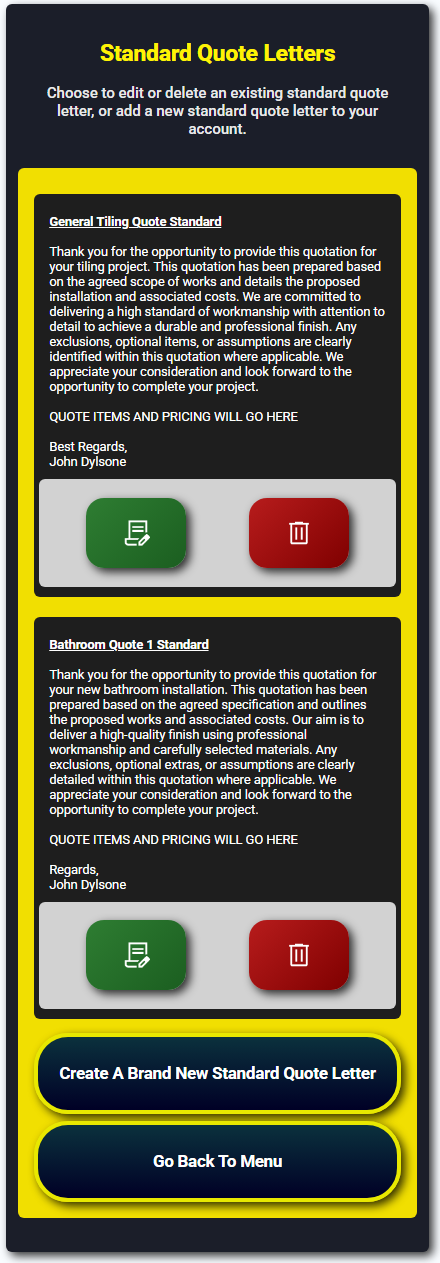
This screen allows you create standard letters which appear at the top of your quotes for work.
This has the benefit of saving you time and money because of not having to re-type a letter every time you create a quote.
Instead you simply choose the letter you want to use and it is copied into the quote automatically for you.
Not only that, but once you have chosen a standard letter for a quote, you can edit it to make it more specific and personal to the customer who will be getting the quote!
Your subscription plan determines how many of these standard letters you can store at any time.
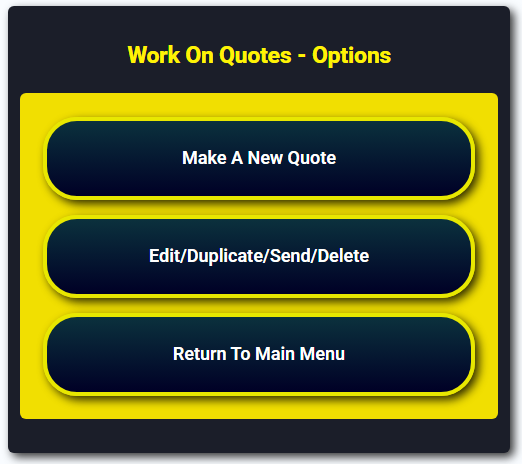
This simple menu easily allows you to choose what you need to be doing on your quotes.
If you need a new quote, simply choose to Make A New Quote and a blank quote will be displayed ready for you to complete - see below.
You might need to EDIT/DUPLICATE/SEND or DELETE an existing quote, in which case simply choosing that option will allow you to choose the quote you want to work on - see below.
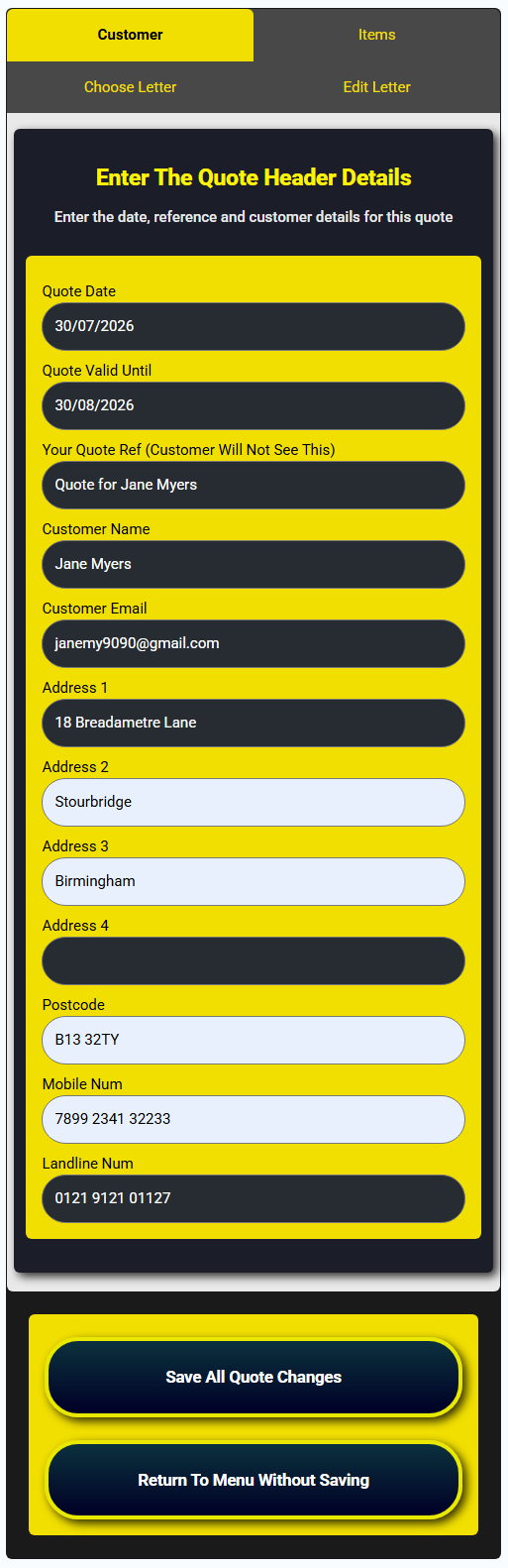
When editing an existing quote, or creating a new one, you are prompted to enter your customer details.
You will notice that at the top of the screen there are four sections, we will go through each one below.
Not all of the information needs to be entered, but the more you enter, the more we can do with your quote. For example, entering an email address for the customer means we
can automatically email it to them for you, and you will be notified when they read the quote!

This is the section which makes your life a LOT easier. All you need to do is enter the items you want to show as a breakdown on the quote.
Simply enter the description, the price and whether or not VAT is to be added onto the price. Our software will automatically calculate the totals as you enter the details.
At this point it should be noted that you can enter VAT requirements at ITEM level, so for some items you might charge VAT - but for others you might not.
Theres more - where VAT is chargeable, you can even enter special rates as provided by HMRC where applicable. This means our software caters for the edge cases in addition to the
standard requirements. Don't worry though - if almost everything you do where VAT is concerned - is standard rate (currently 20%), then you won't need to change a thing because
we default everything to 20% for you.
Towards the top you will be able to see the grand total quote values update as pricing is keyed and the quote starts coming together.
Under every single quote item, you will see icons which represent actions which can be performed to the items. These include :-
Delete Item
Move Item Up in the List
Move Item Down in the List
Insert Item Above the Current Item
Insert Item Below the Current Item
The software automatically detects where in the list an item appears - so you cannot move an item from the top of the list any higher. This is useful because when you are
working outside or in bright light on a mobile phone, it can sometimes be difficult to see which icons are active. In other words, we can stop mistakes made by clicking on the wrong icon!
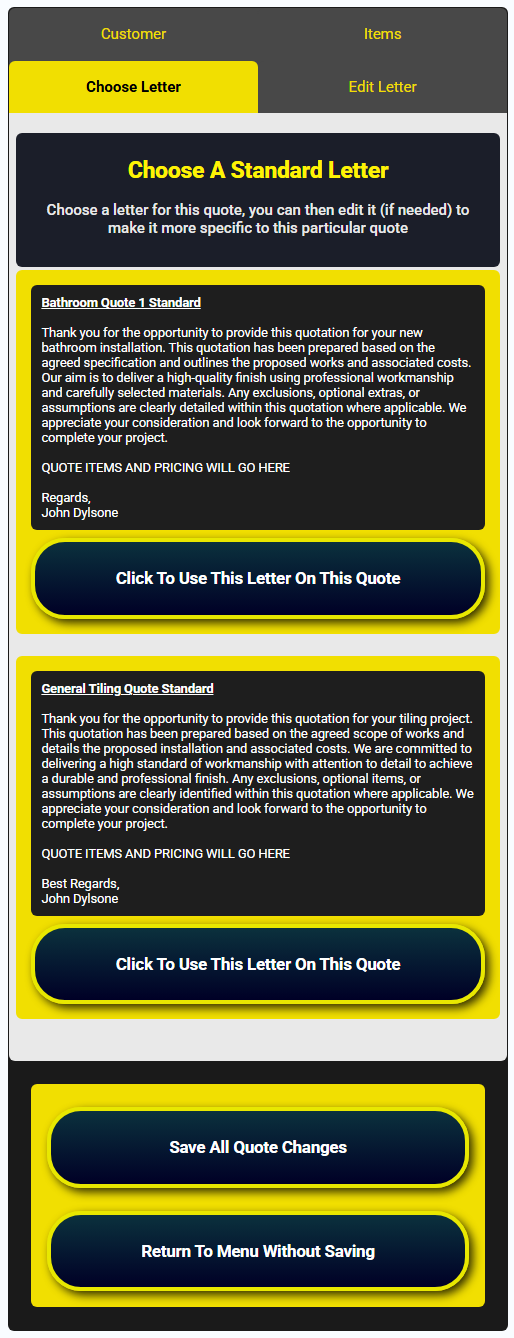
Higher up in the guide you saw how you could create standard letters. It is at this point where those letters come into their own to help
you add professionalism to your quote documents and also save you time and money.
A huge advantage of these letters is that you can choose one from the list shown (example above) and it will be added to the quote, but not only that, our system
then lets you make changes to the letter and customise it (only if you need to) so that it becomes a truly bespoke component of your offer.
The customised version is then stored separately ON THE QUOTE, and your original standard letter template is retained for the next quote!
This is HUGELY BENEFICIAL - because later on you can replicate a quote for the same customer if needed, and the letter will be replicated along with the customisation! This is a
unique feature of our ingenious software.
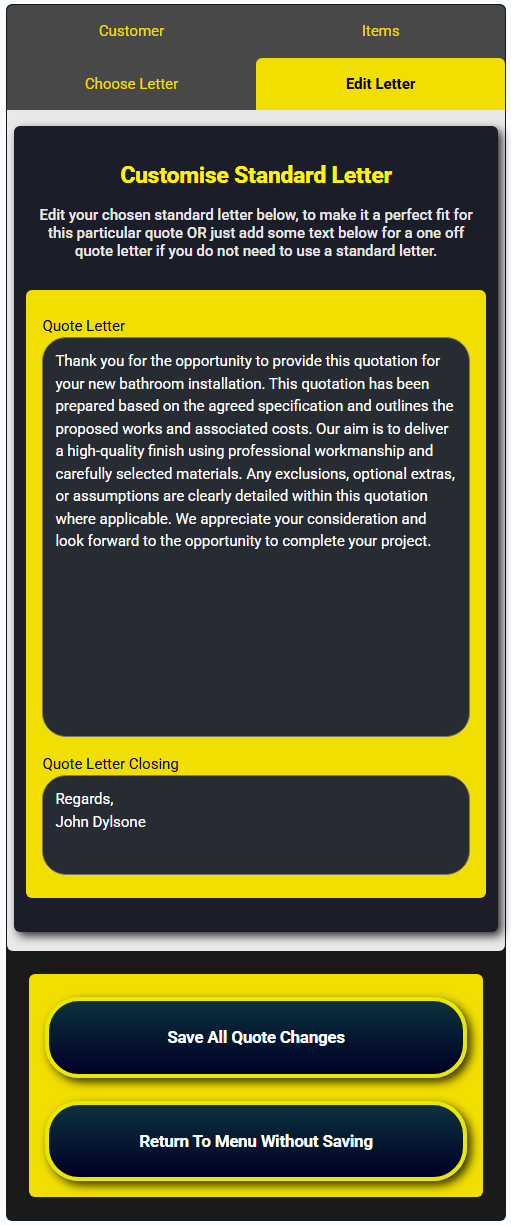
Having chosen the letter, this form allows you to cusomise it to the EXACT requirements for this particular customer.
This helps you build trust with your customer and ensures the increasingly important personal touch when dealing with them.
Changes can be made as often as needed, and a different letter can be attached to the quote before it is sent to the customer if that's needed.
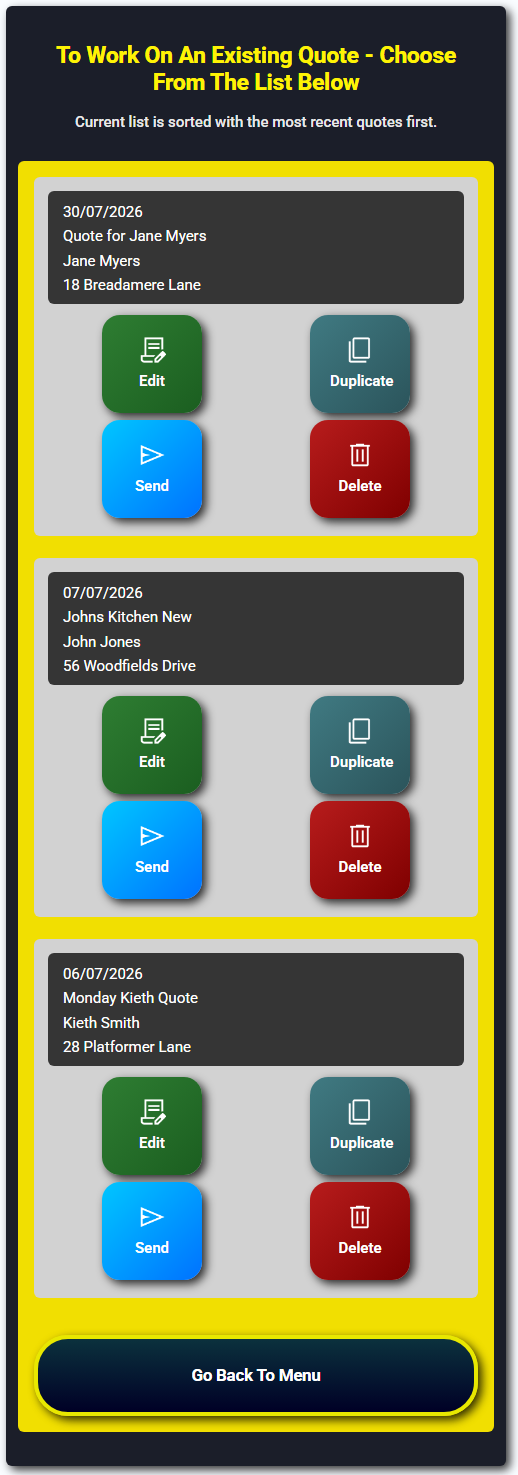
As quotes build up within the system, you can choose which one you want to work with, and what exactly you want to do with it depending on your workflow.
You can EDIT/DELETE/REPLICATE quotes. Editing allows you to make changes if the quote has not yet been sent to the client. Deleting is straightforward deletion of quotes.
Replicating a quote creates an exact copy of a quote and allows you to change anything on it. This includes adding items, removing items, re-ordering or modifying them.
The benefit of this is that you can ensure each modified quote sent to the customer is treated as a NEW quote with its own number...... this helps avoid confusion about which is the absolute latest version, I.E. it is the
one with the biggest quote number!
The other option is SEND, this is where a quote is emailed to the customer. See below for an example of this.
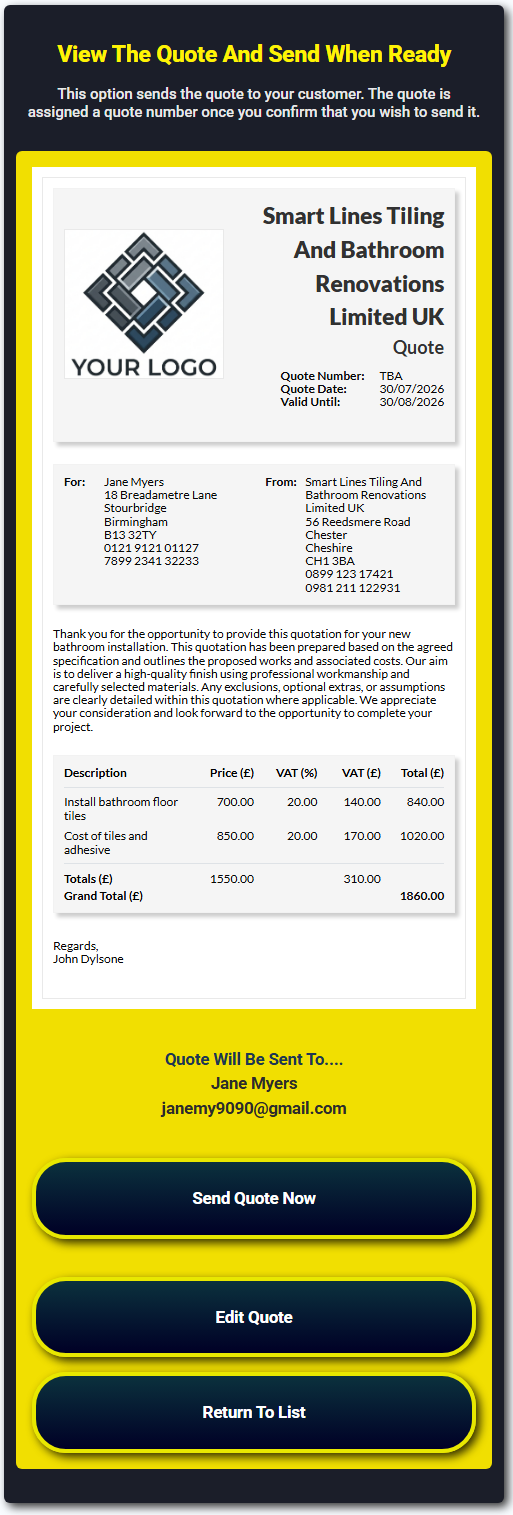
This is the heart of the software. You can now send the quote to your customers via email. A link is sent to them and they can view the quote
on screen at will. Once they view the GDPR compliant quote, you will be notified by email so that you can benefit from knowing they have had a look. They will see your logo and the quote exactly as shown above.
This whole process can take as little as 3 minutes to create and send a quote. Sign up today for your free trial.